A product holds everything about one thing you make or sell — its photos, price, variants, and details — in one place, ready to publish to Square when you are.
Start a product
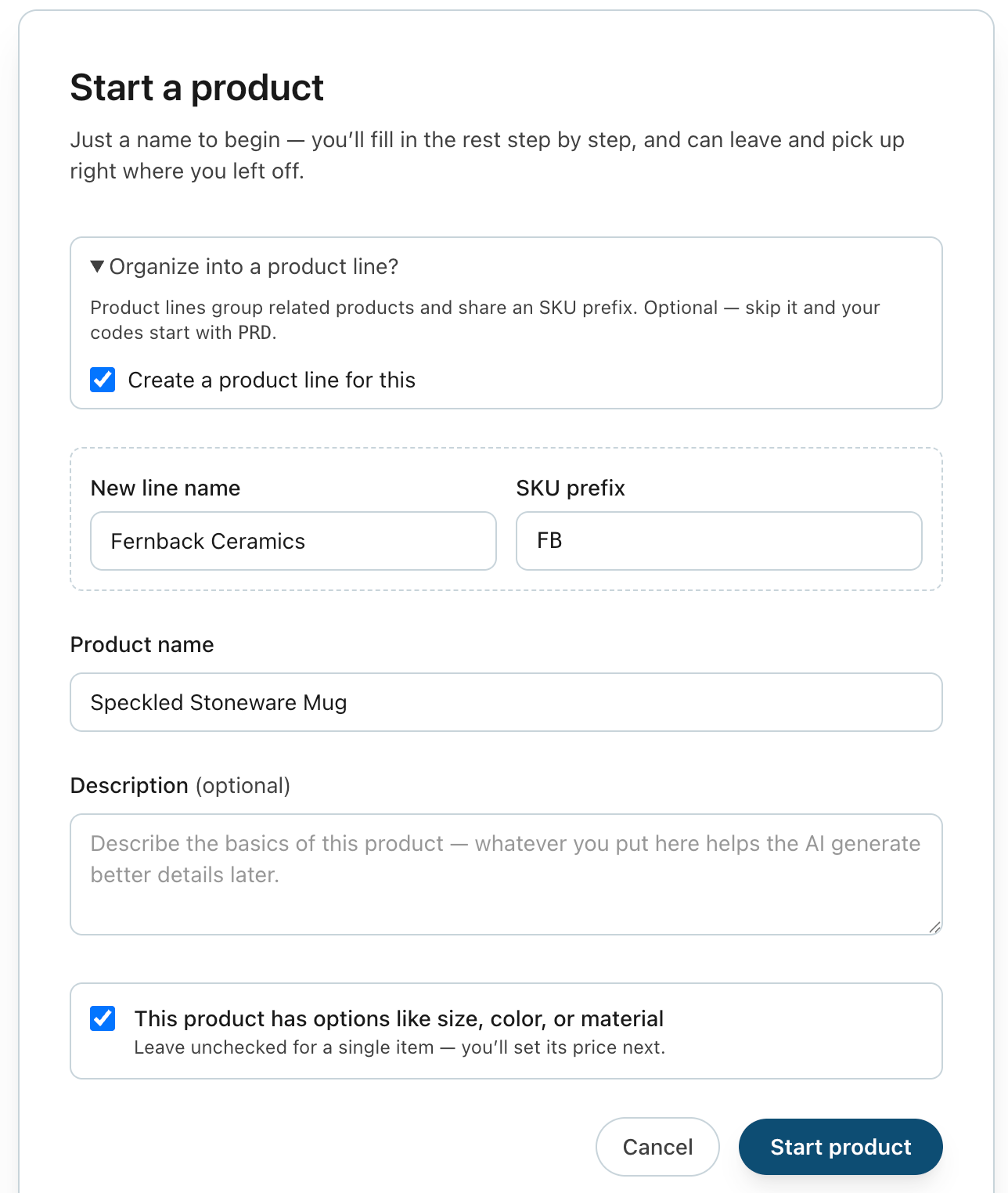
- Click Add product (or Add your first product on an empty catalog) to open the Start a product form.
- Give it a name — that's the only thing required to begin. Optionally add it to a product line, jot a quick description (it helps the AI write better details later), and tick "This product has options like size, color, or material" if it comes in variants.
- Click Start product. Business Ops mints a tidy product code for you and opens the step-by-step setup.
You don't have to finish in one sitting — you can leave and pick up right where you left off.
Photos, price, and details
Setup walks you through a few short steps:
- Identity — the name and basics.
- Options & Pricing (or just Pricing for a single item) — set your variants and prices. SKUs are generated for you.
- Images — add photos and pick your Hero (the lead shot).
- Details — let the AI draft a description, tags, and alt text; you review and approve.
- Store Prep — the final check before publishing.
Drafts vs. active products
A new product starts life as a draft (its status is Concept). Drafts stay out of your live catalog and out of Square until you click Finish setup, which promotes it to Active and ready to sell.
Separately, each business can track its own stages — a customizable workflow like Concept → In Development → Ready. That's just your own label for where a product is in your process; it never affects whether a product can be published.
Related: Publishing a product to Square · Getting started with Business Ops