If you use Claude or ChatGPT, you can connect it to Business Ops and work with your business by just asking — "add the contact I met this morning," "what open opportunities do I have?", "pull up everything on Jane Doe." The assistant looks things up and adds new entries for you; it never changes or deletes anything, and it asks before every addition.
Before you start
- You'll need a paid plan with the assistant (Claude Pro or ChatGPT Plus, or above).
- Your connector address is on the AI Assistants page in Business Ops — open the account menu (your avatar, top-right) and choose AI Assistants. There's a copy button next to the address.
- The connection uses your own Business Ops login — no keys or passwords to copy around. Teammates connect with their own logins, and each connection only reaches the businesses that person belongs to.
Connect Claude
Works on claude.ai, the Claude desktop app, and the mobile apps — the steps below show the desktop app, and the web version matches.
-
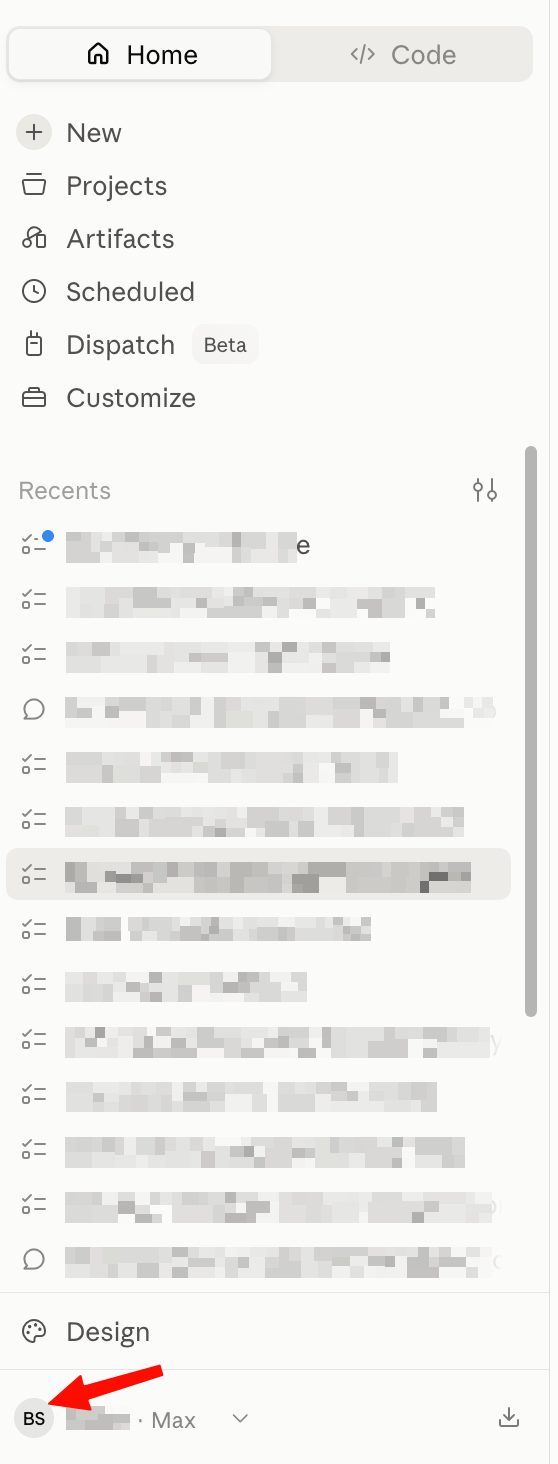
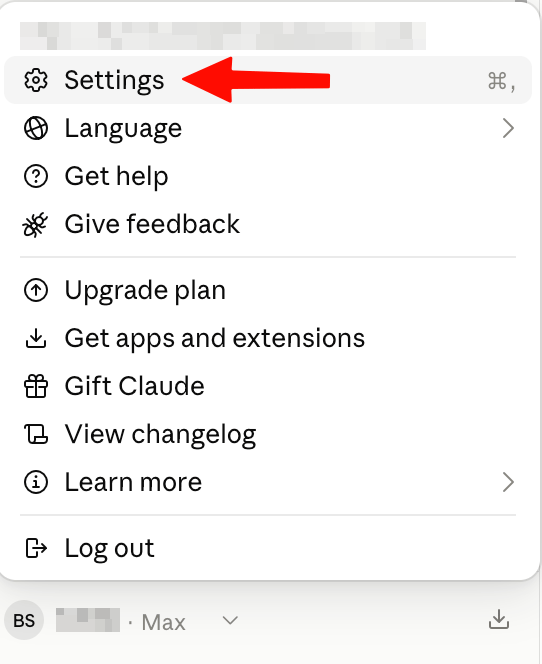
Click your account button (bottom-left) and choose Settings.
-
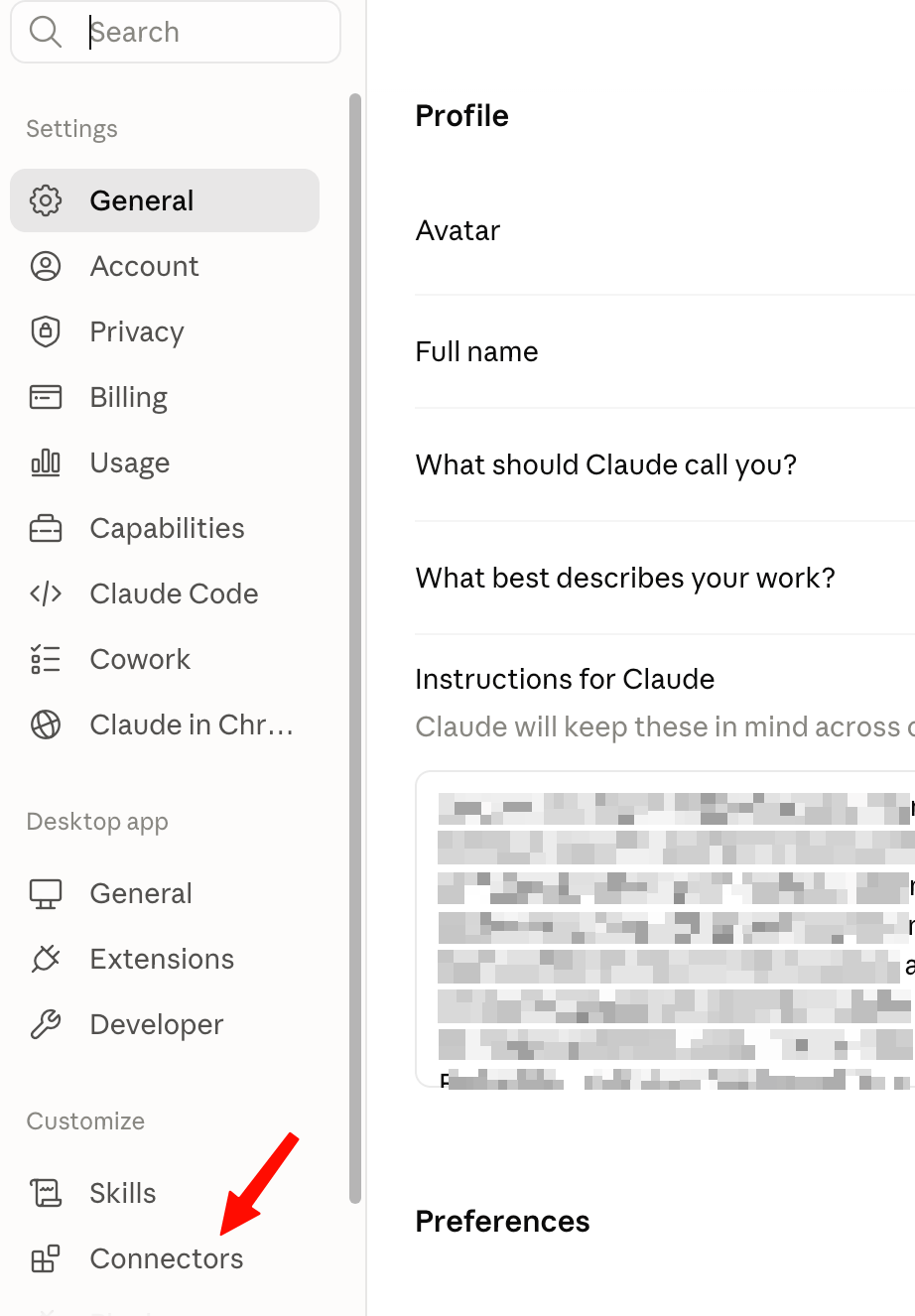
Pick Connectors in the settings sidebar (under Customize).
-
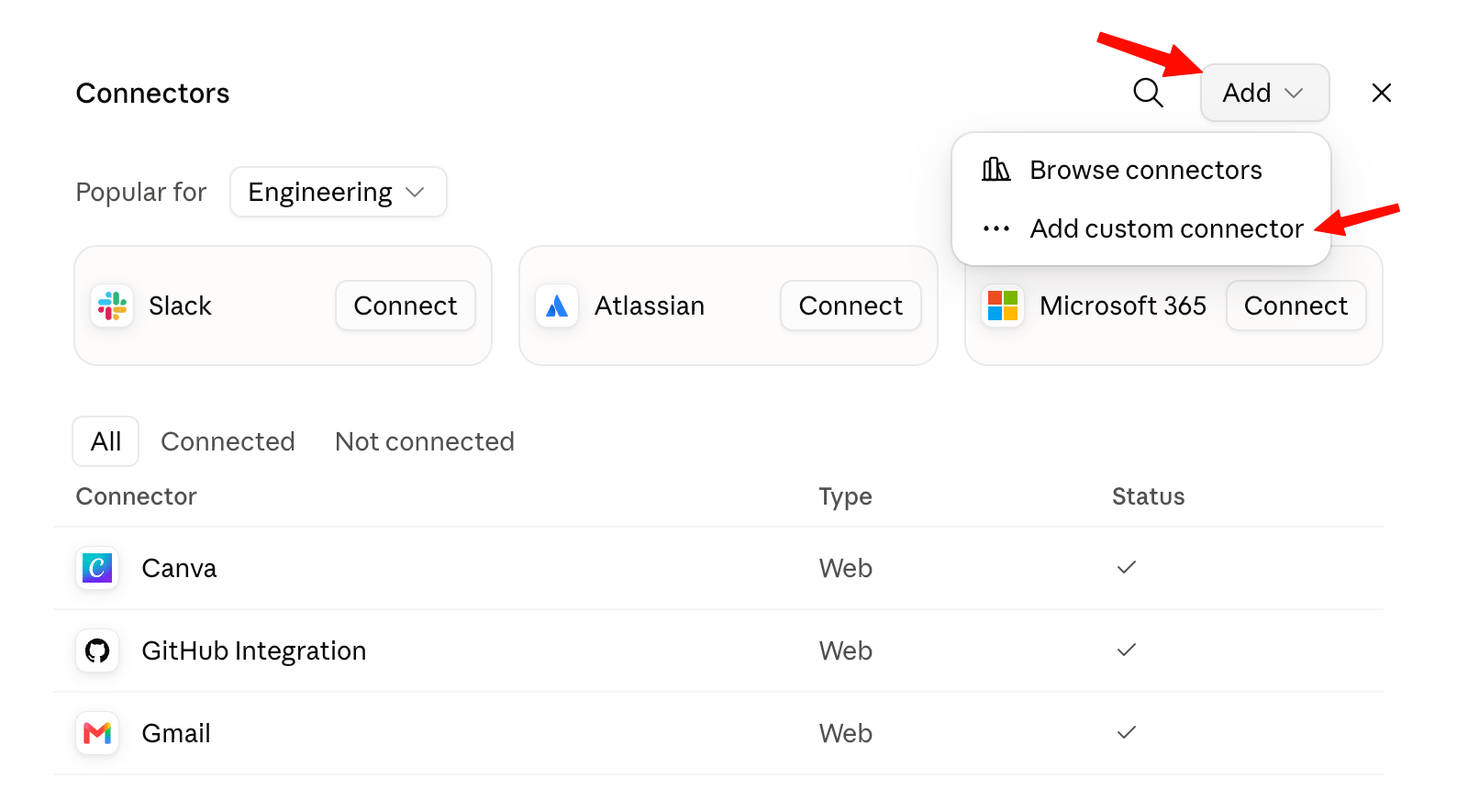
Click Add (top-right) and choose Add custom connector.
-
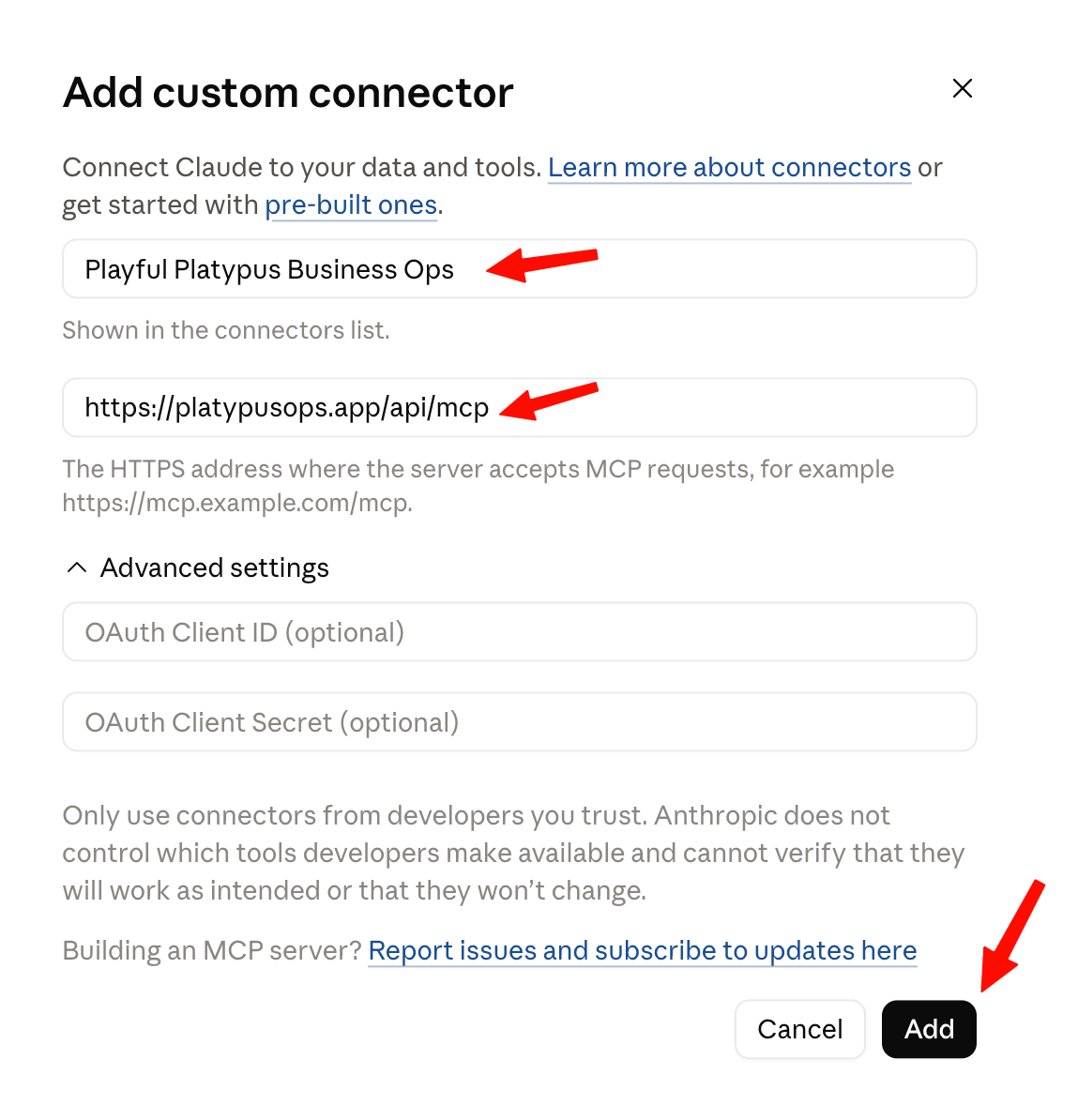
Give it a name — your business's name works well — paste your connector address, and press Add.
-
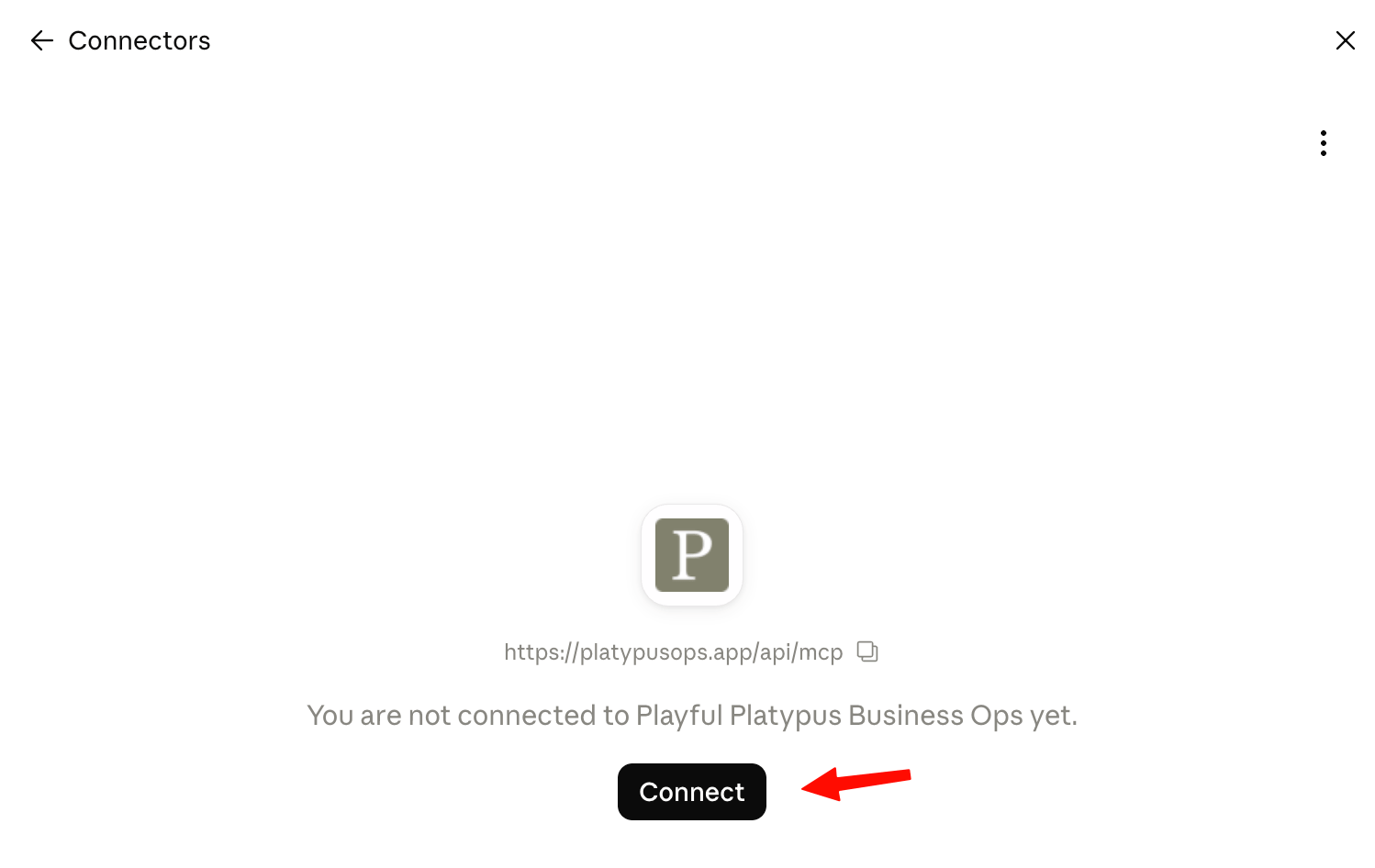
Open the new connector in the list and press Connect.
-
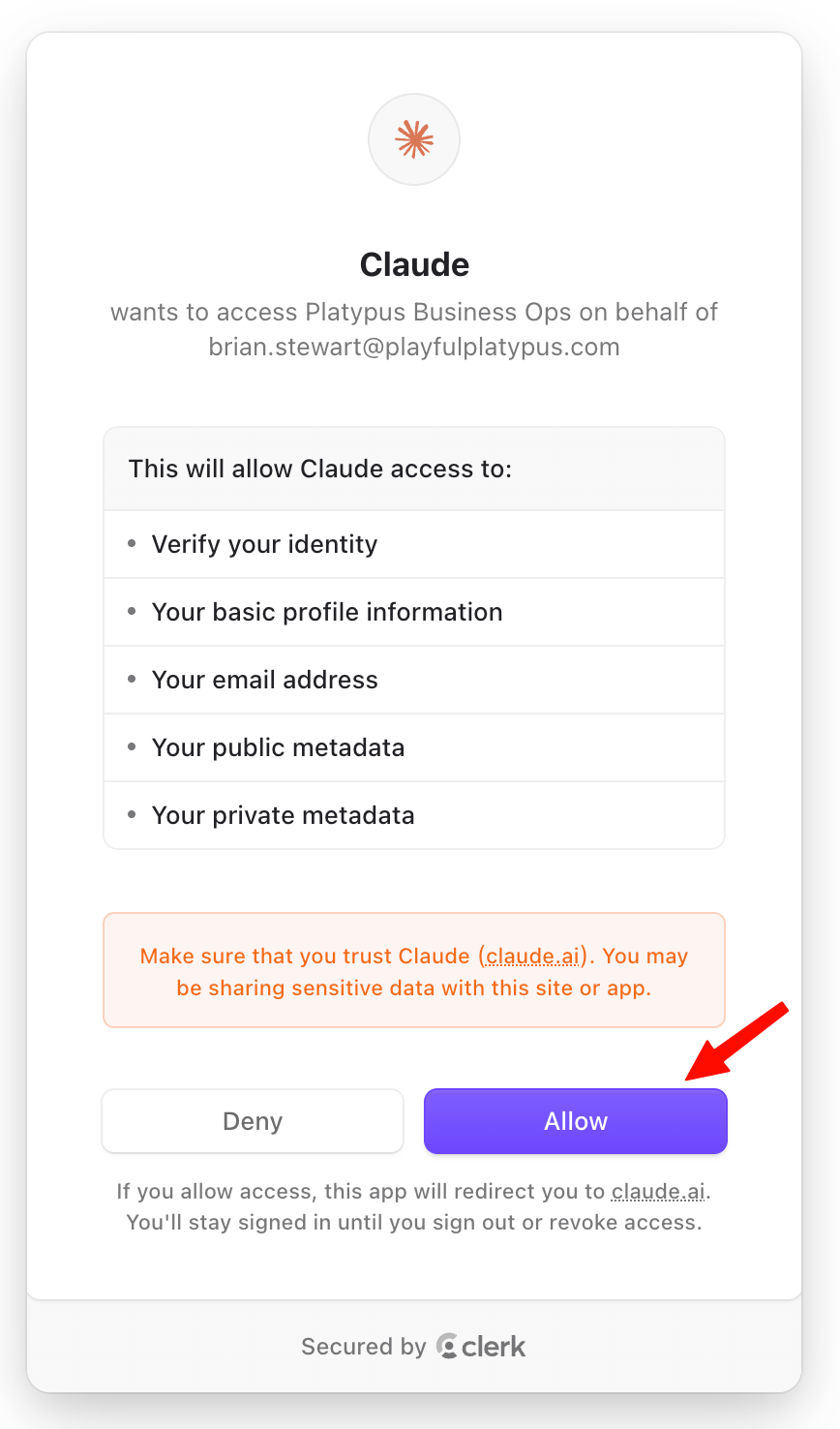
Sign in with your Business Ops account if asked, check that it's acting on behalf of your email, and press Allow.
-
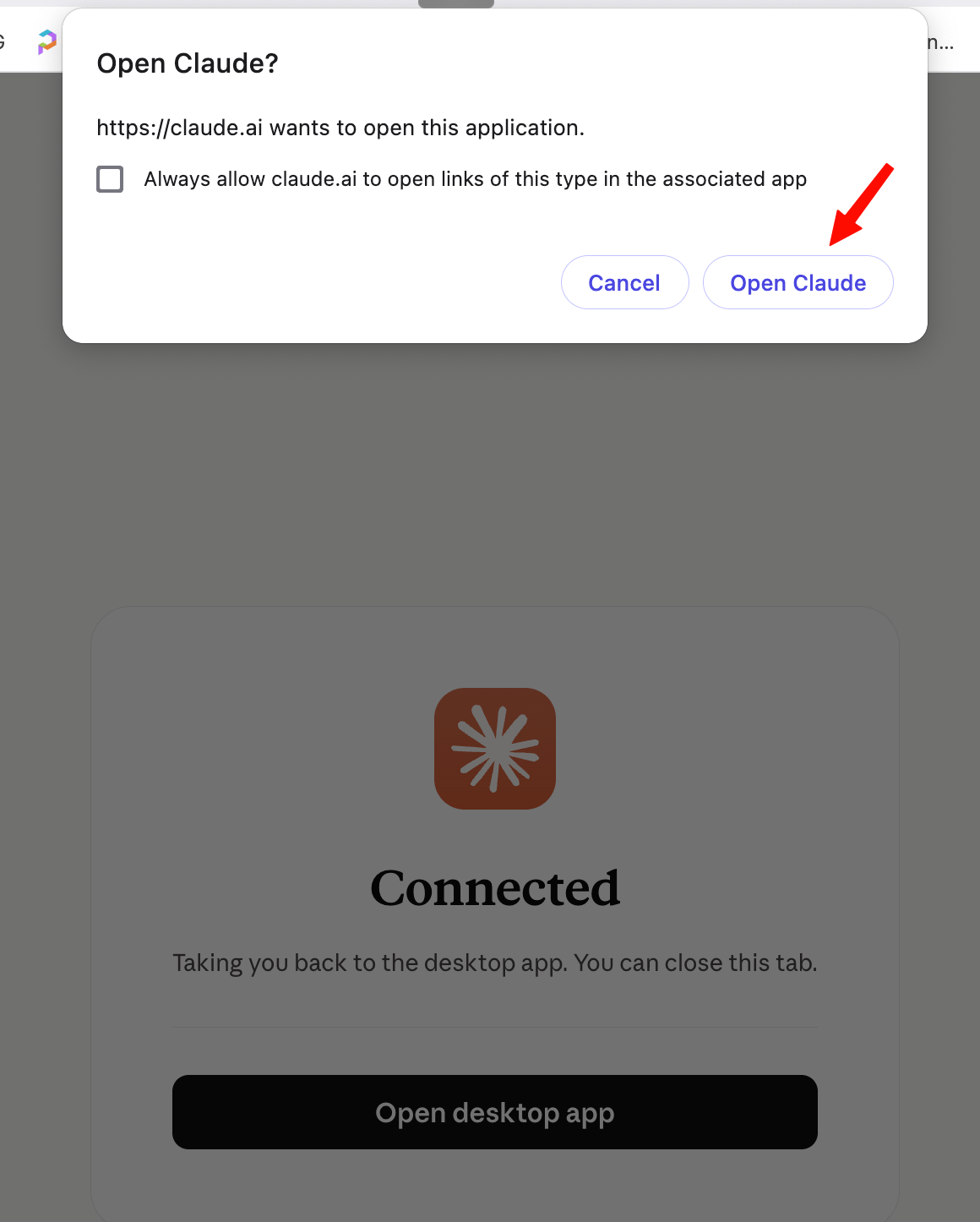
Using the desktop app? Your browser finishes the sign-in and offers to hop back — press Open Claude.
-
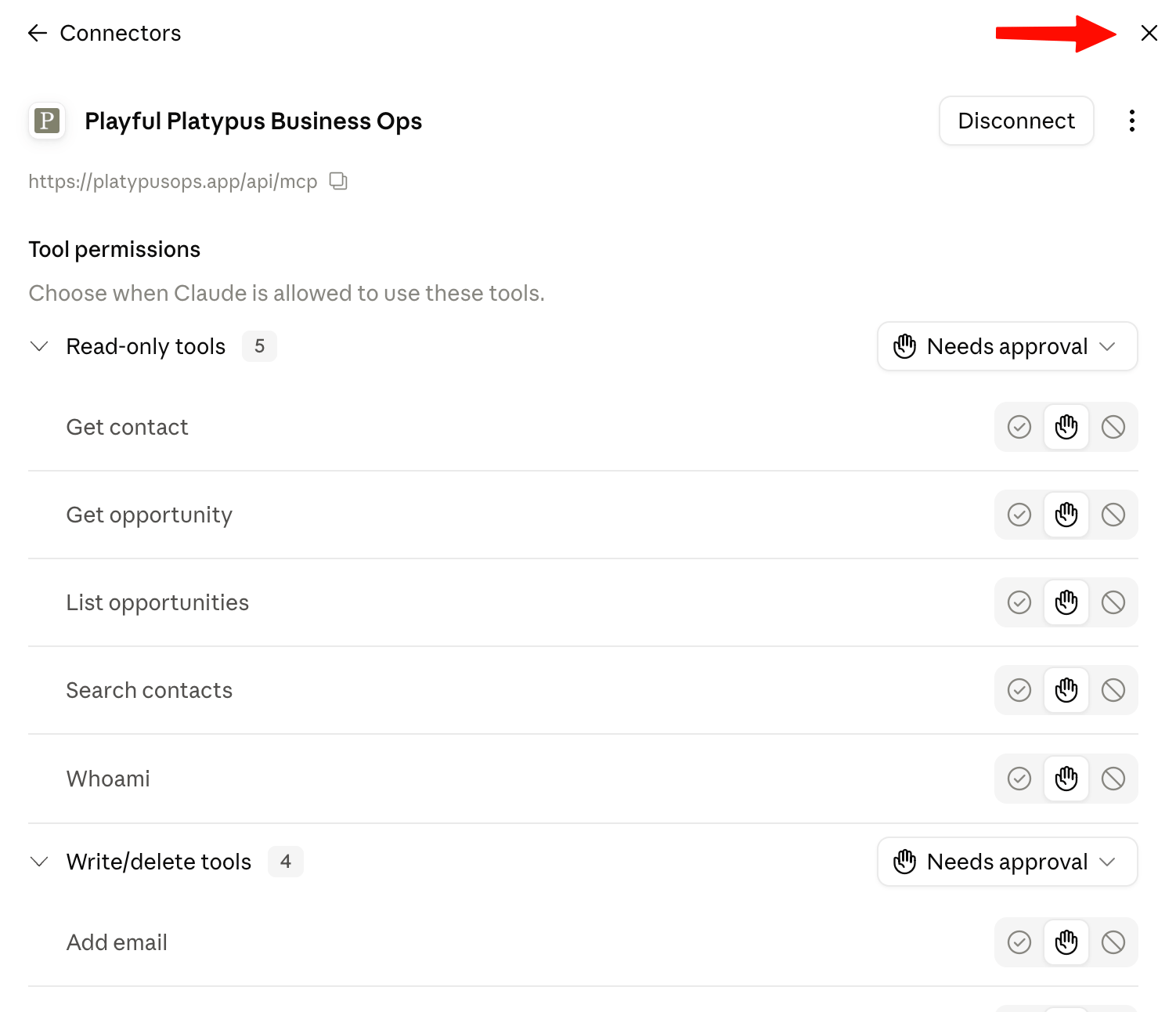
You're connected. The connector's page also lists Tool permissions, where you can fine-tune what Claude may do — the default (Needs approval) asks you before each use, which is a good place to start.
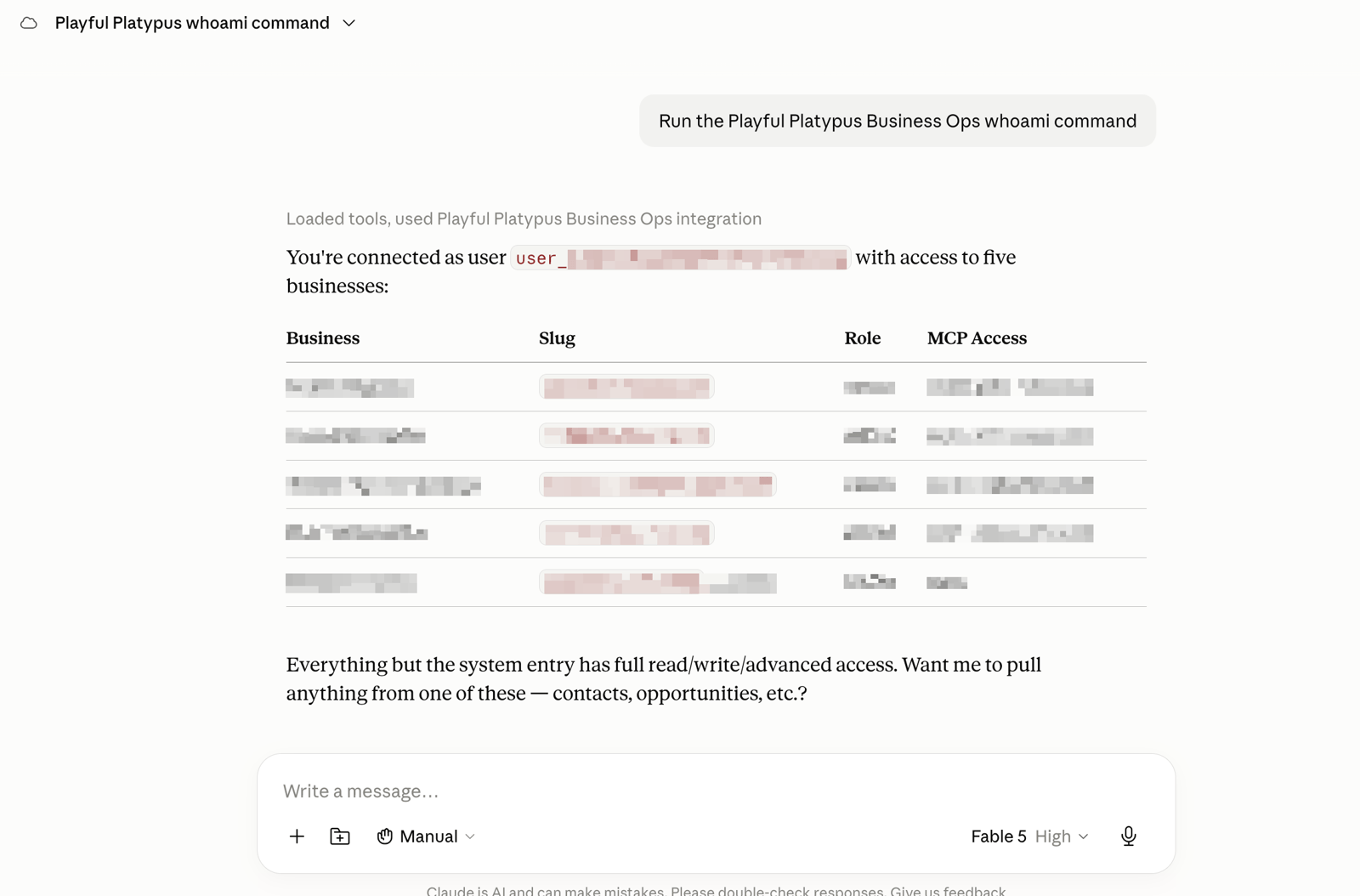
Start a new chat and ask Claude something about your business:
Connect ChatGPT
ChatGPT calls these plugins, and adding your own is a one-time, slightly longer setup: you'll switch on Developer mode first.
Turn on Developer mode (once)
-
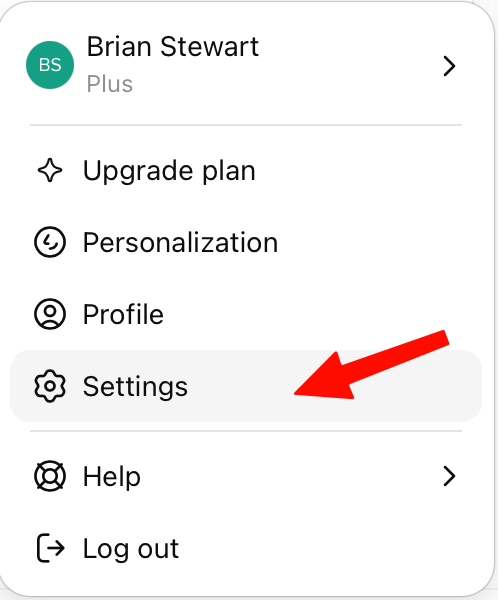
Open your profile menu and choose Settings.
-
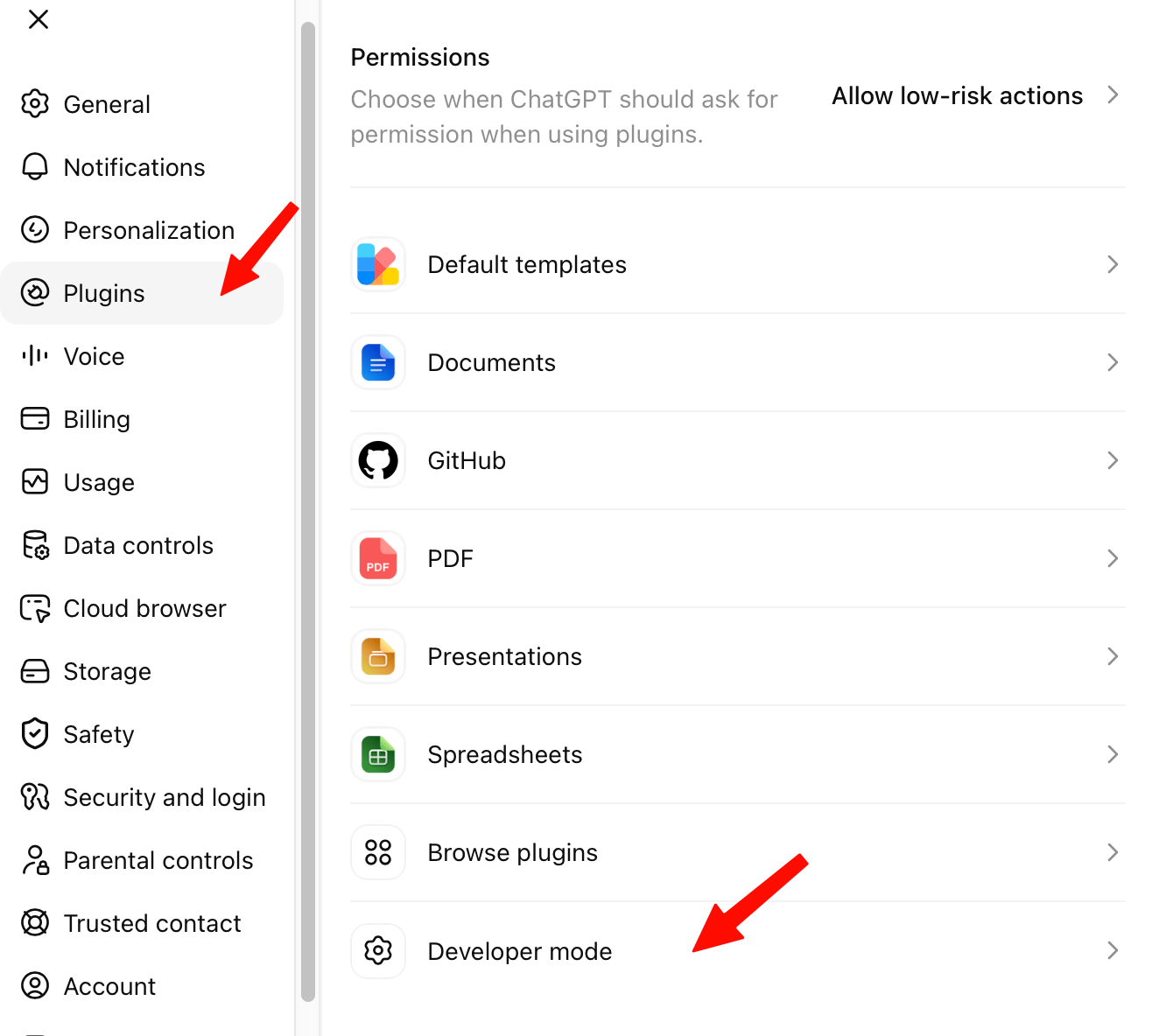
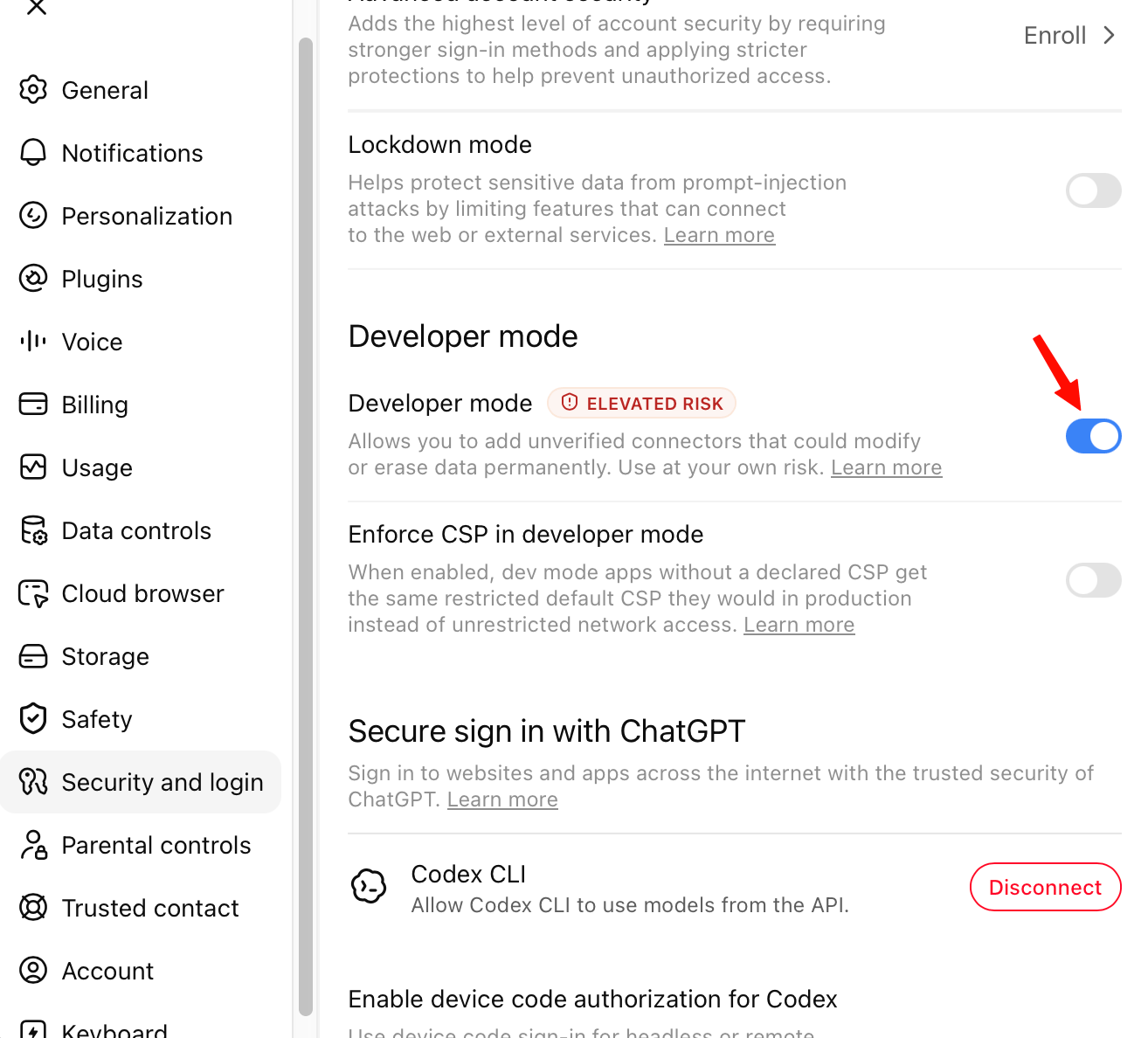
Pick Plugins in the settings sidebar, then choose Developer mode at the bottom of the list.
-
Turn the Developer mode switch on. (The "elevated risk" wording is ChatGPT's standard caution for any plugin it hasn't reviewed itself.)
Add the plugin
-
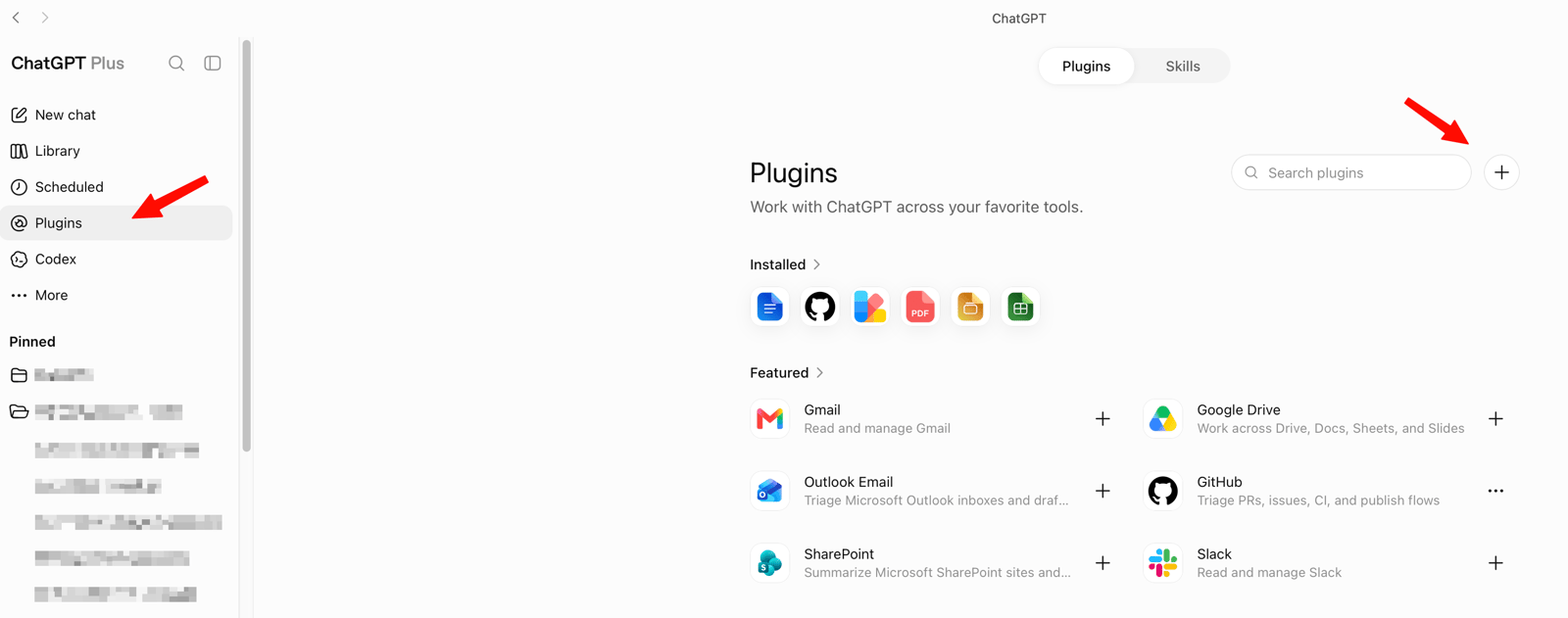
Pick Plugins in ChatGPT's sidebar, then click the + button (top-right).
-
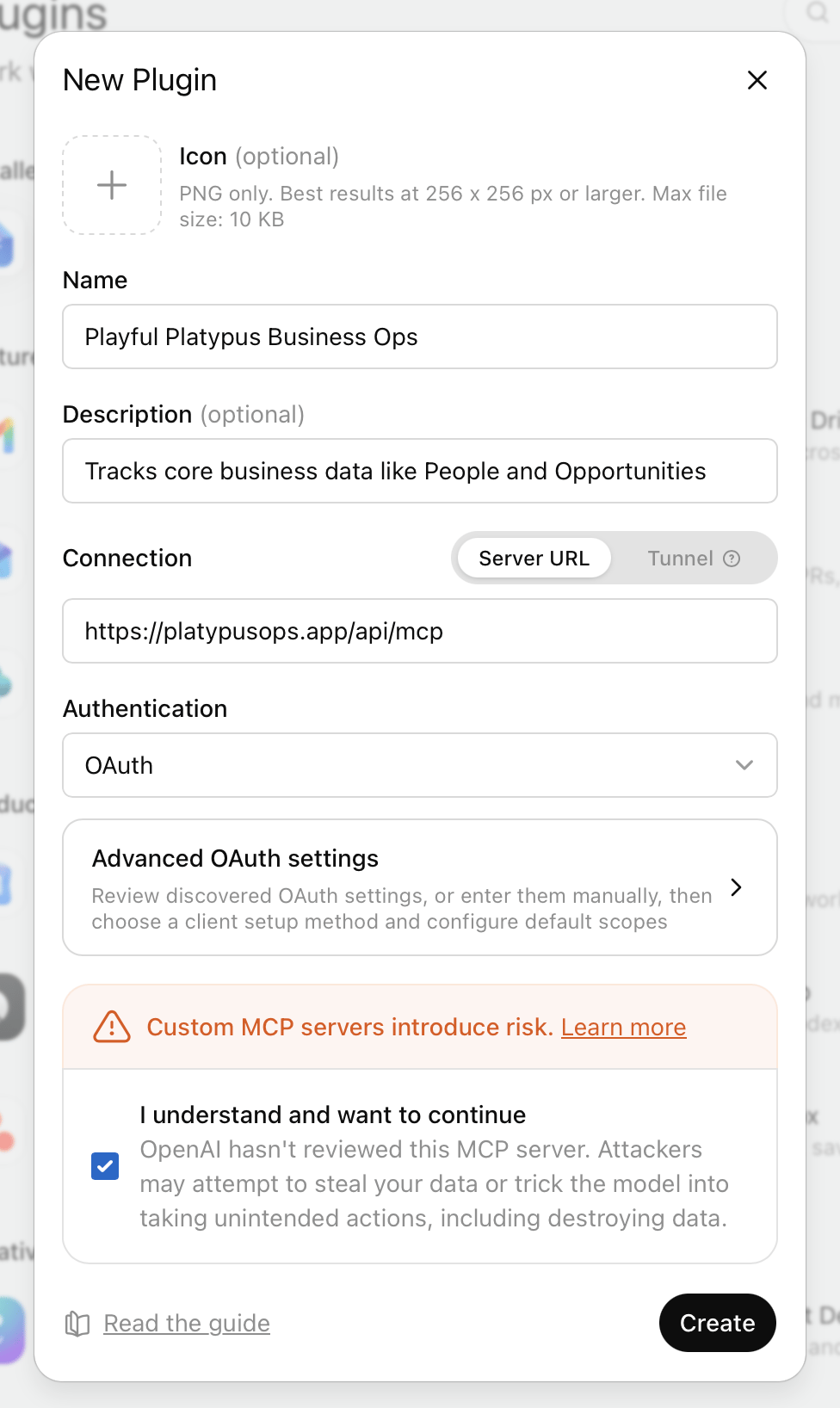
In the New Plugin dialog:
- Name it — for example, your business's name.
- Paste your connector address as the Server URL.
- Leave Authentication on OAuth.
- Tick I understand and want to continue — the "OpenAI hasn't reviewed this MCP server" notice appears for every custom plugin — and press Create.
Sign in and approve
-
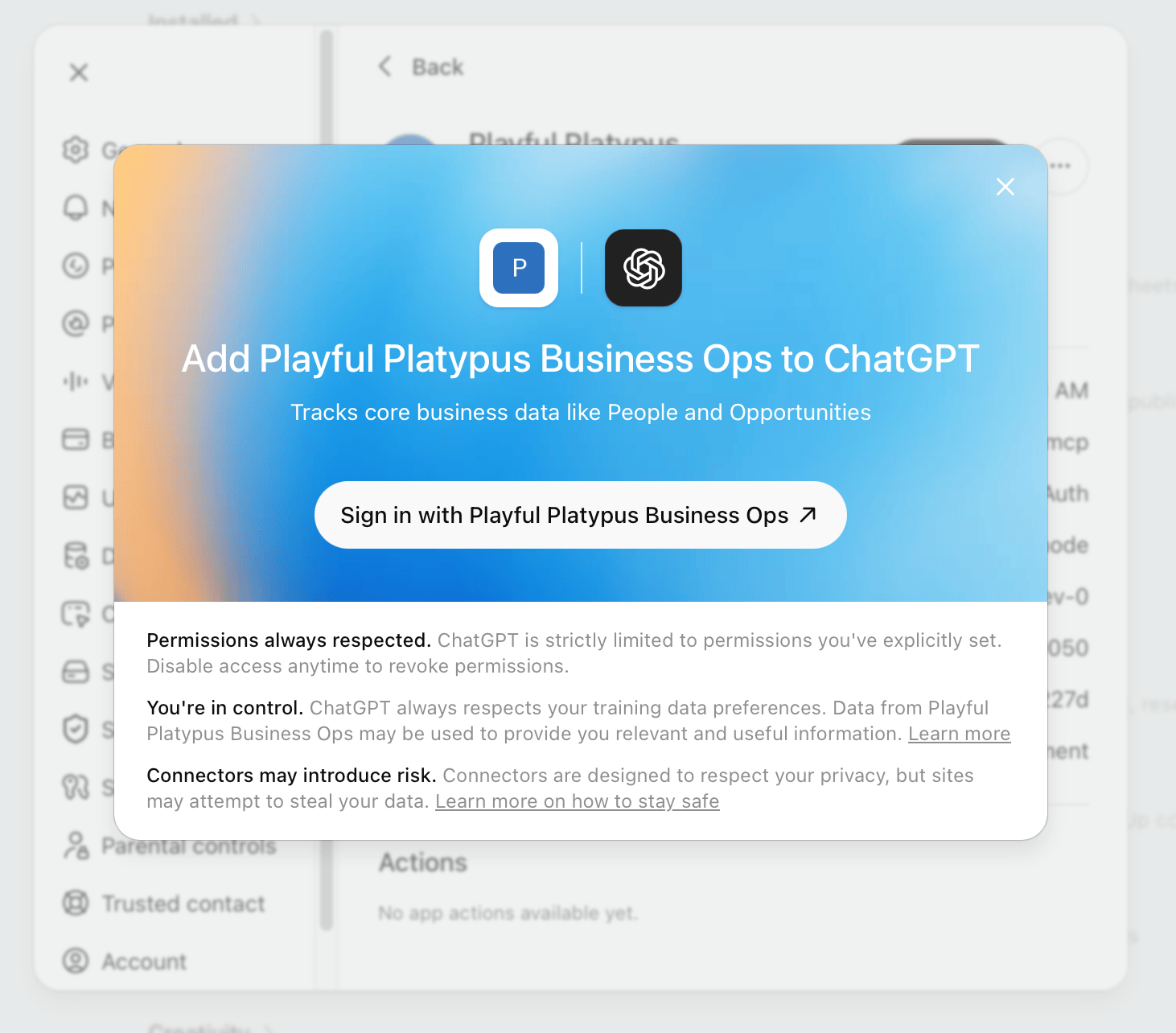
ChatGPT shows an add-to-ChatGPT card — press Sign in.
-
Sign in with your Business Ops account (the same email and password — or Google — you use in the app).
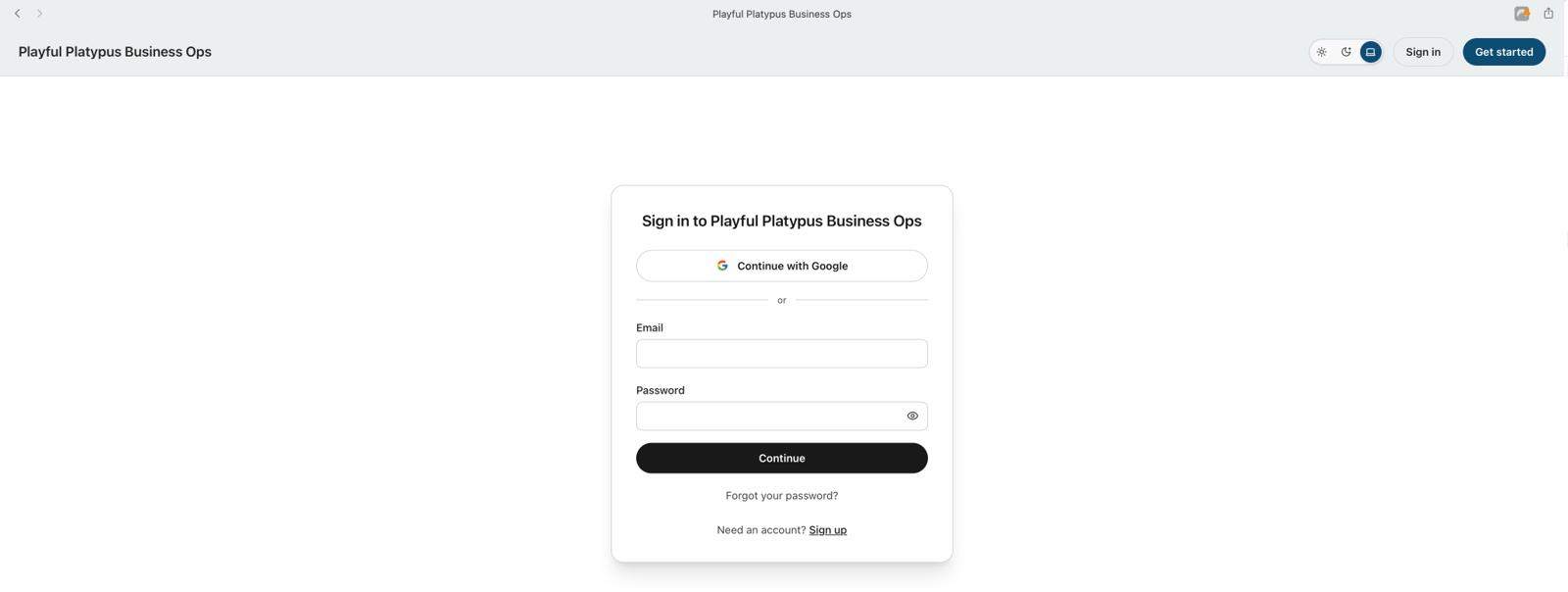
-
On the approval screen, check that it's asking on behalf of your email, then press Allow.
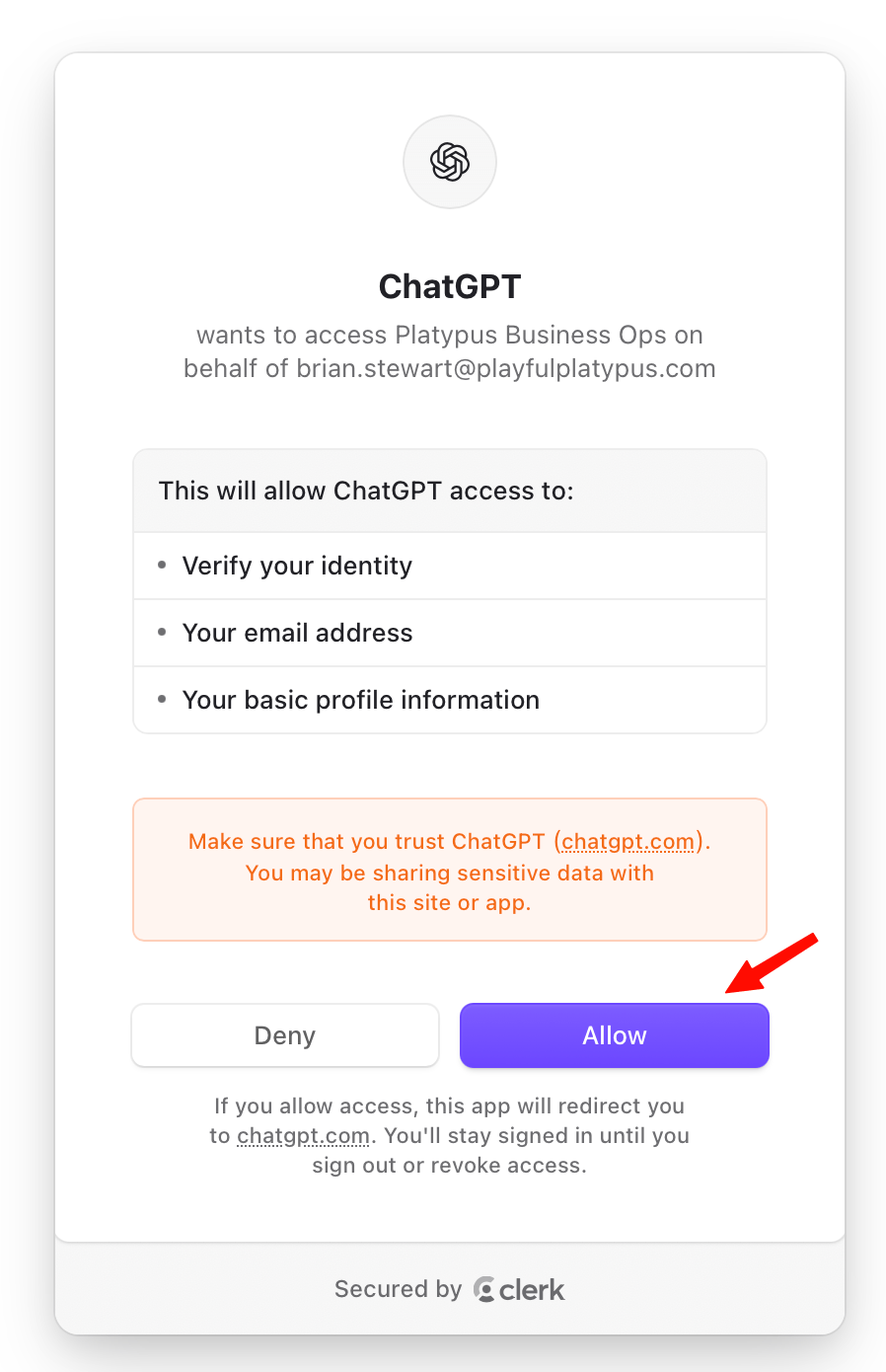
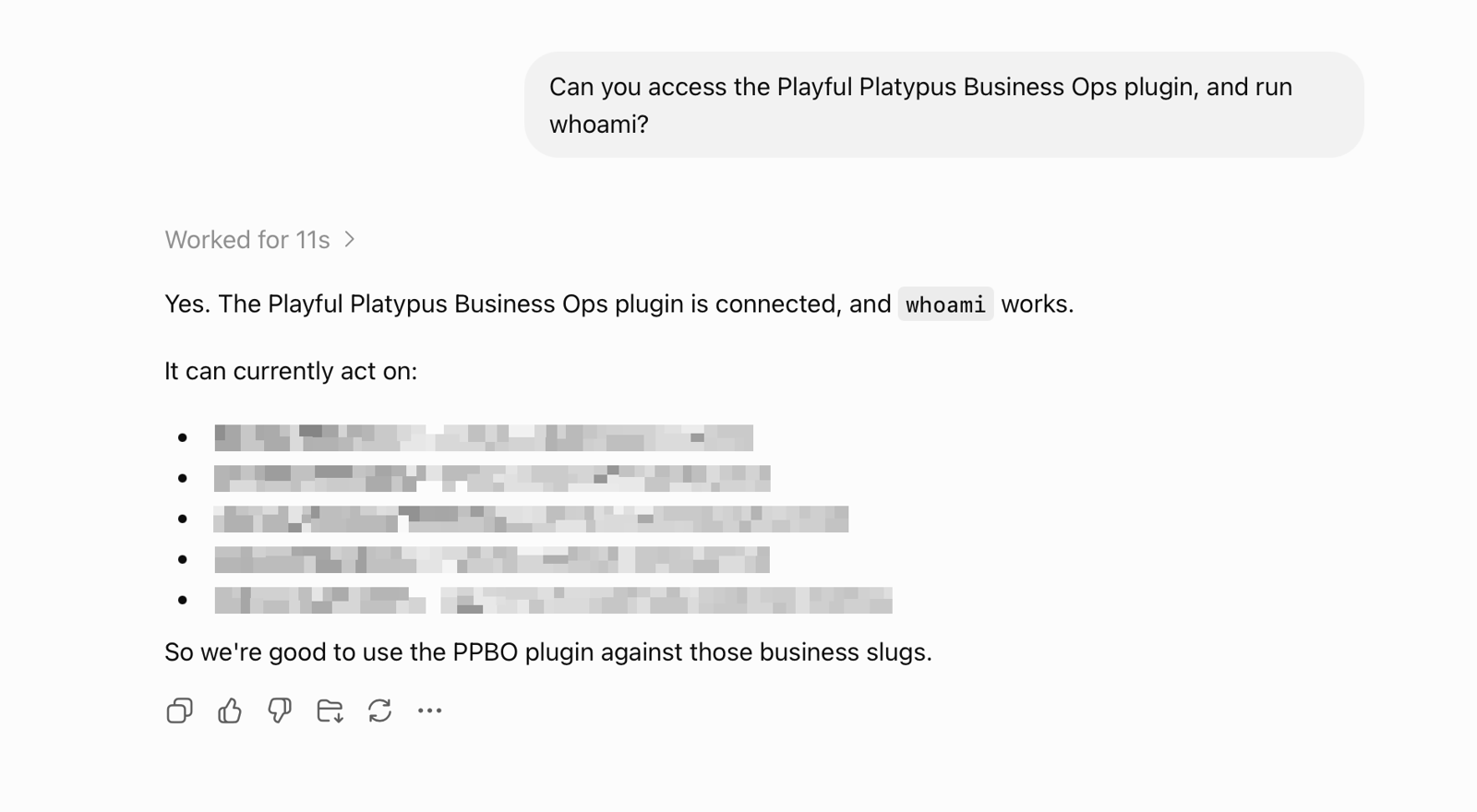
You're connected. Start a chat and ask ChatGPT to use the plugin.
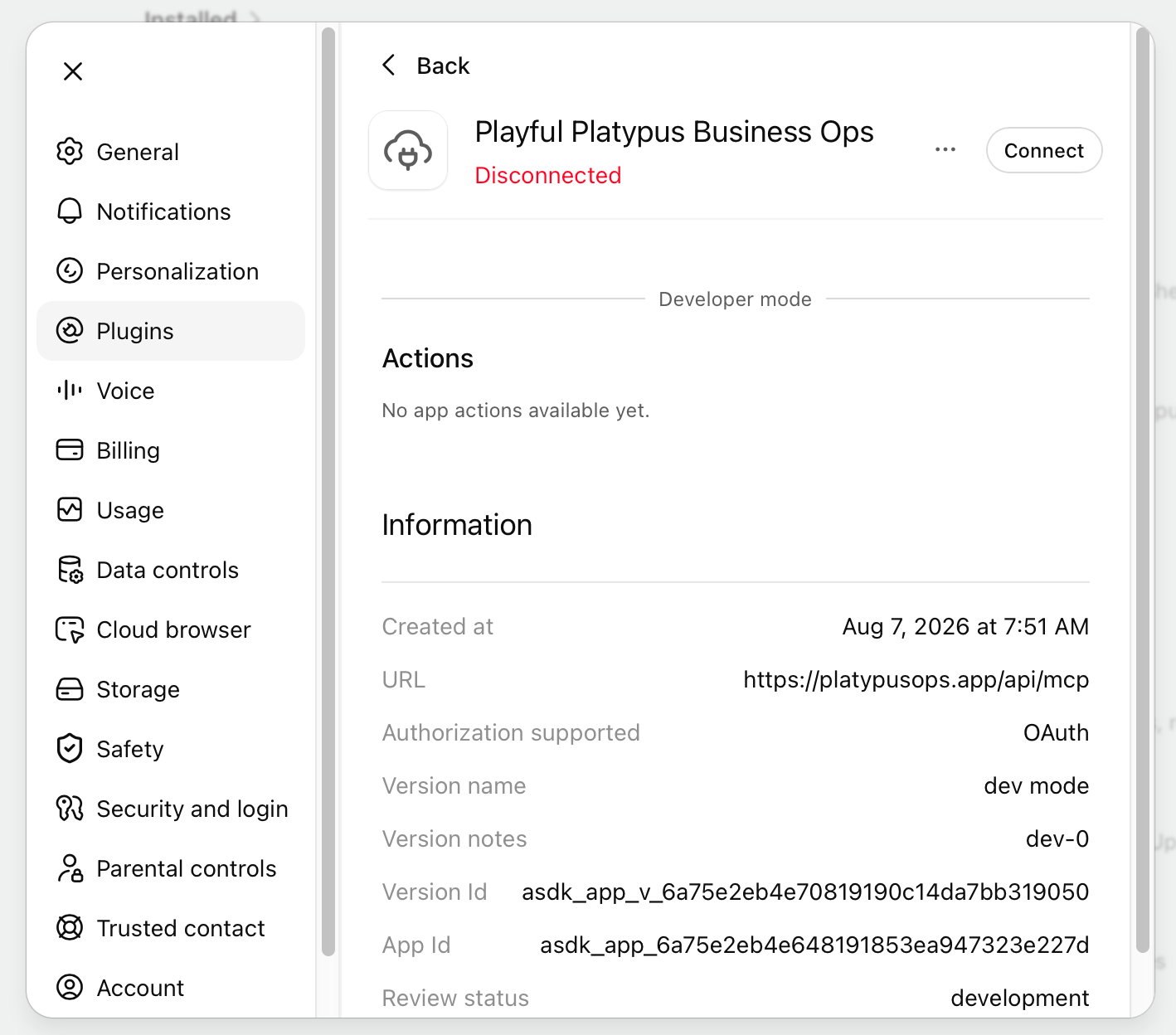
Seeing "Disconnected" in the plugin's settings page? That label can appear even when the plugin works perfectly — it reflects an idle session, not a broken connection. The real test is asking ChatGPT to use the plugin in a chat.
Things to try
- "Add the contact I just met: Dave Reyes from Hilltop Fencing, [email protected]."
- "What open opportunities do I have right now?"
- "Pull up everything we know about Jane Doe — notes, contact info, opportunities."
- "Add a note to Jane Doe: wants a quote for a custom mug order by Friday."
If you belong to more than one business, the assistant will ask which one you mean — or just say it up front ("…in Rock Wall Garden").
Good to know
- The assistant asks before adding anything, and every addition names the business it goes into. Nothing is ever changed or deleted this way — assistants can only look things up and add.
- What it can do follows your plan — looking things up is included on every paid plan; adding contacts and notes comes with Growth and up. The AI Assistants page in the app shows what your plan includes.
- Notes are recorded under your name, and contacts added this way are marked as added by an assistant.
- Changed your mind? Remove the connector (Claude) or plugin (ChatGPT) from the assistant's settings any time.
Related: Getting started with Business Ops · Adding your first contacts