People is where everyone you do business with lives — customers, leads, suppliers, the lot. You add people one at a time, and each person can hold their contact details plus the opportunities and notes attached to them.
Add a contact by hand
- Open People and click Add person (top-right of the list — or use Quick actions on the People home).
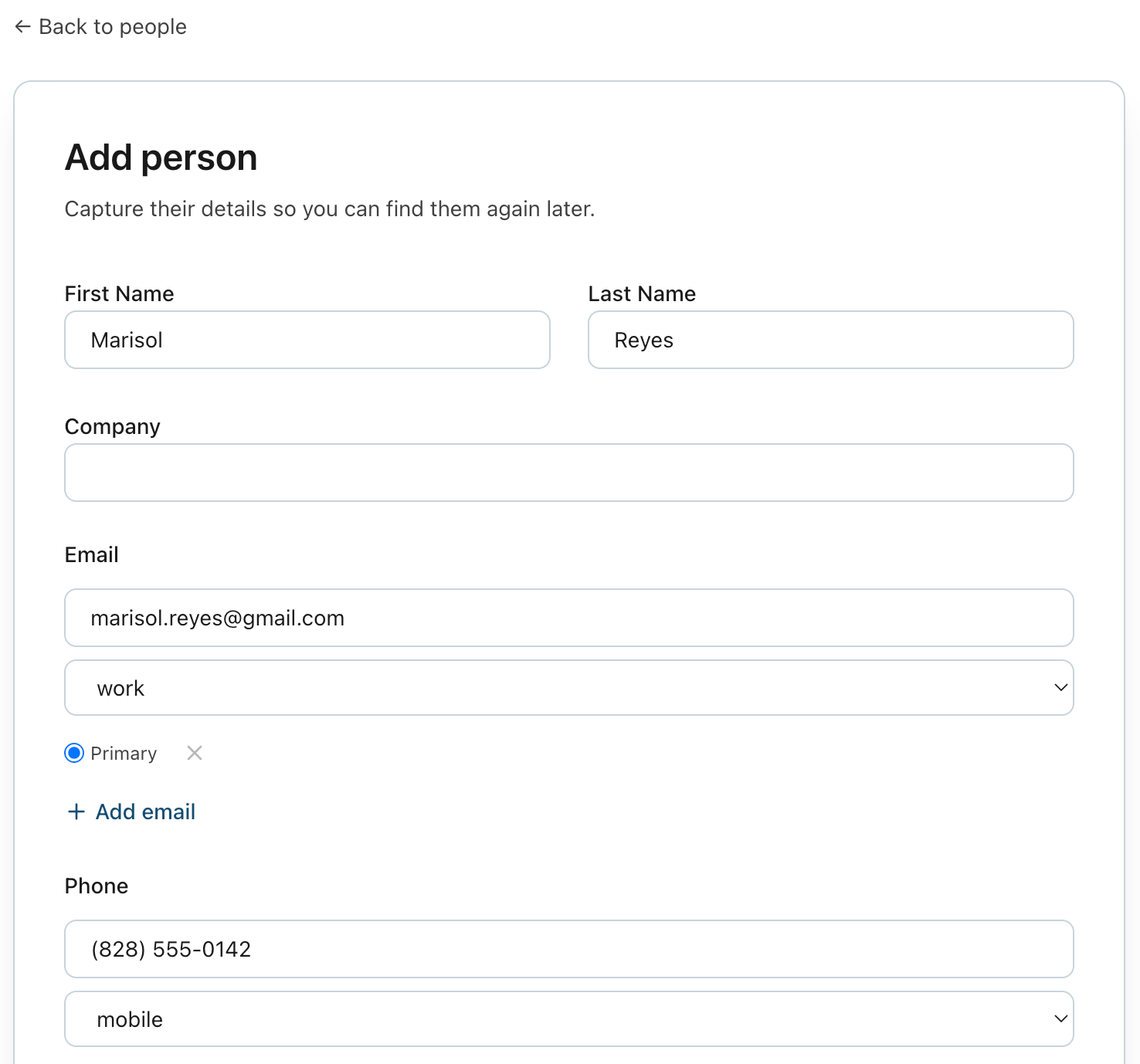
- Enter a First name. That's the only required field; Last name and Company are optional.
- Add any emails and phone numbers. Use Add email / Add phone for more than one, pick a type (work, personal, mobile…), and mark one as Primary — the primary email is the one shown first and the one used to match your mailing-list subscribers.
- Add an address if you need it — useful later for shipping.
- Click Save person. You'll land back on your list with the new person added.
There's no bulk or CSV import yet — add people as you go. (You can pull your list back out anytime with Export CSV on the People list.)
What a contact can hold
Each person can carry:
- Name and company
- Multiple emails, phones, and addresses — each with a type, and one of each marked as primary
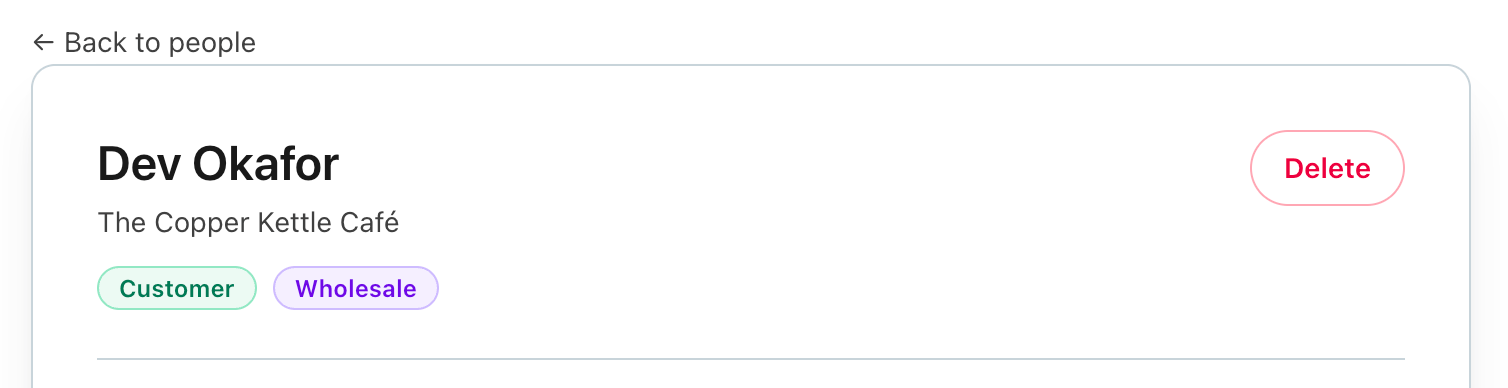
- Status badges, set automatically — Customer (has a won opportunity), Prospect (has an open opportunity), and Subscriber (their primary email is on your mailing list). You don't set these; they follow what's true.
- Labels you add by hand — Wholesale or Supplier — from the person's page, under Labels. (Customer, Prospect, and Subscriber are automatic; you only add the others that apply.)
- Opportunities and notes — see below.
Where opportunities and notes fit
Open any person to attach two things to them:
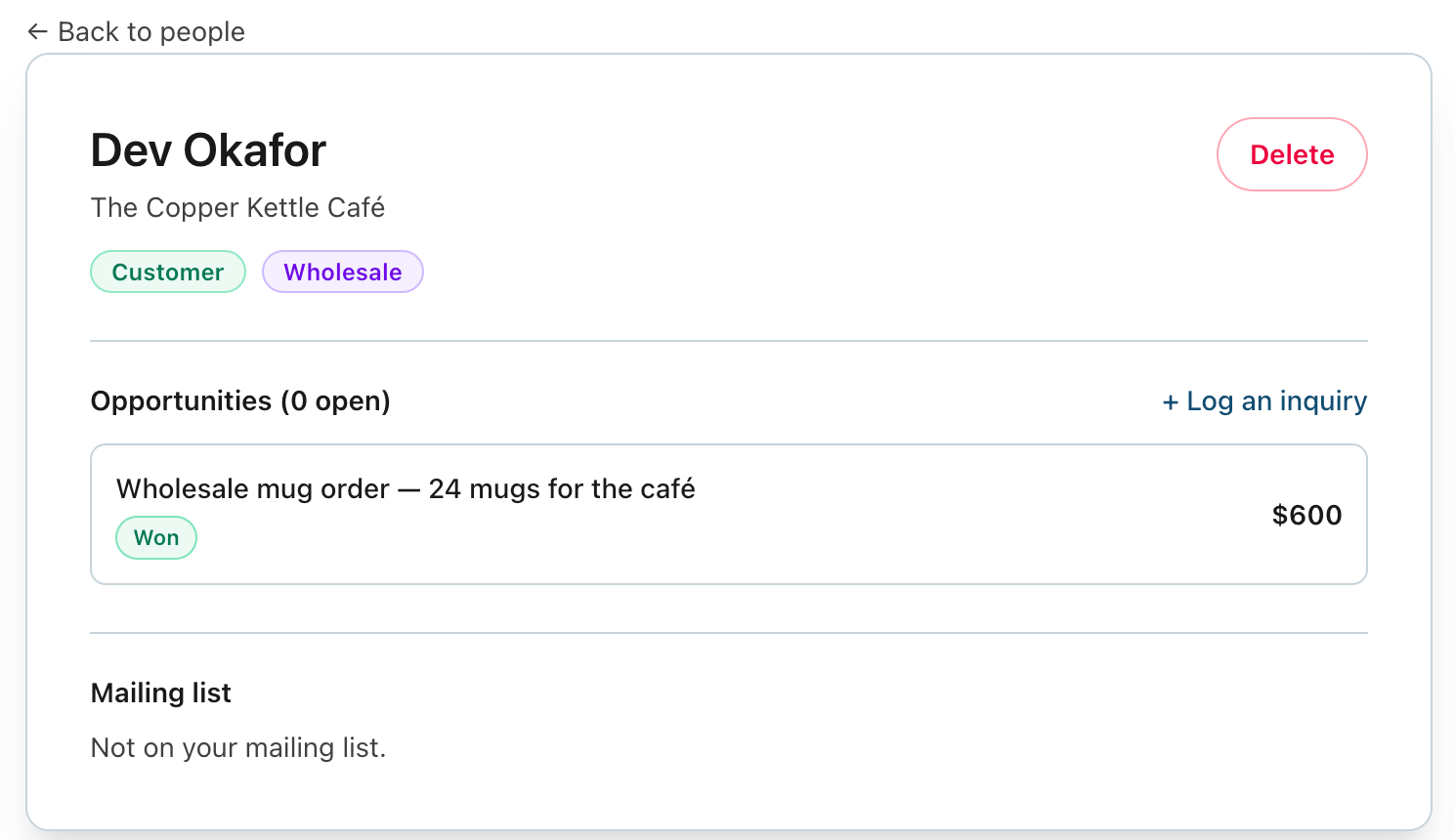
- Opportunities — a potential sale or someone asking about your work. Click + Add opportunity on their page, add a short summary, a value, and a status (New, Talking, Won, or Lost), then Save opportunity. Marking one Won flips the person to Customer automatically; an open one marks them a Prospect.
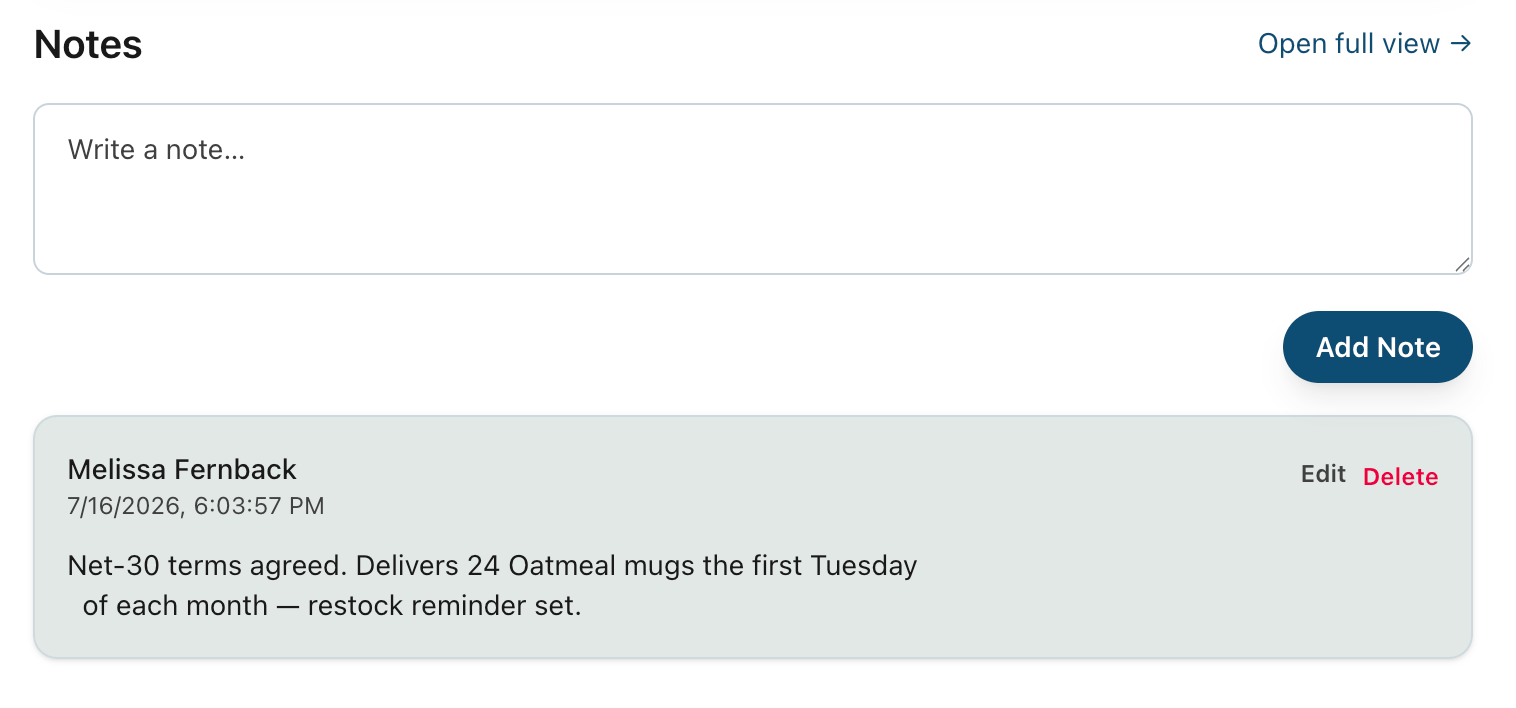
- Notes — a running log for that person. Type in the Notes box on their page and click Add Note — calls, follow-ups, anything you want to remember next time.
Related: Getting started with Business Ops