The listing checklist (shown as Square preflight once you're connected) is a quick quality check before you publish. Most of what it flags is optional.
Warnings never block you
There are two kinds of item on the checklist:
- Blocking issues — marked ⛔. These do stop a publish because Square would reject the listing. You'll see "Resolve issues to publish" until they're fixed. Examples: no Hero image, a variant with no price, or a photo over Square's size/format limits (Square doesn't accept WebP, for instance).
- Warnings — amber, grouped and collapsible. These are just suggestions for a better listing. When there's nothing blocking, you'll see: "No blocking issues — the warnings below are optional." You can publish with warnings still showing.
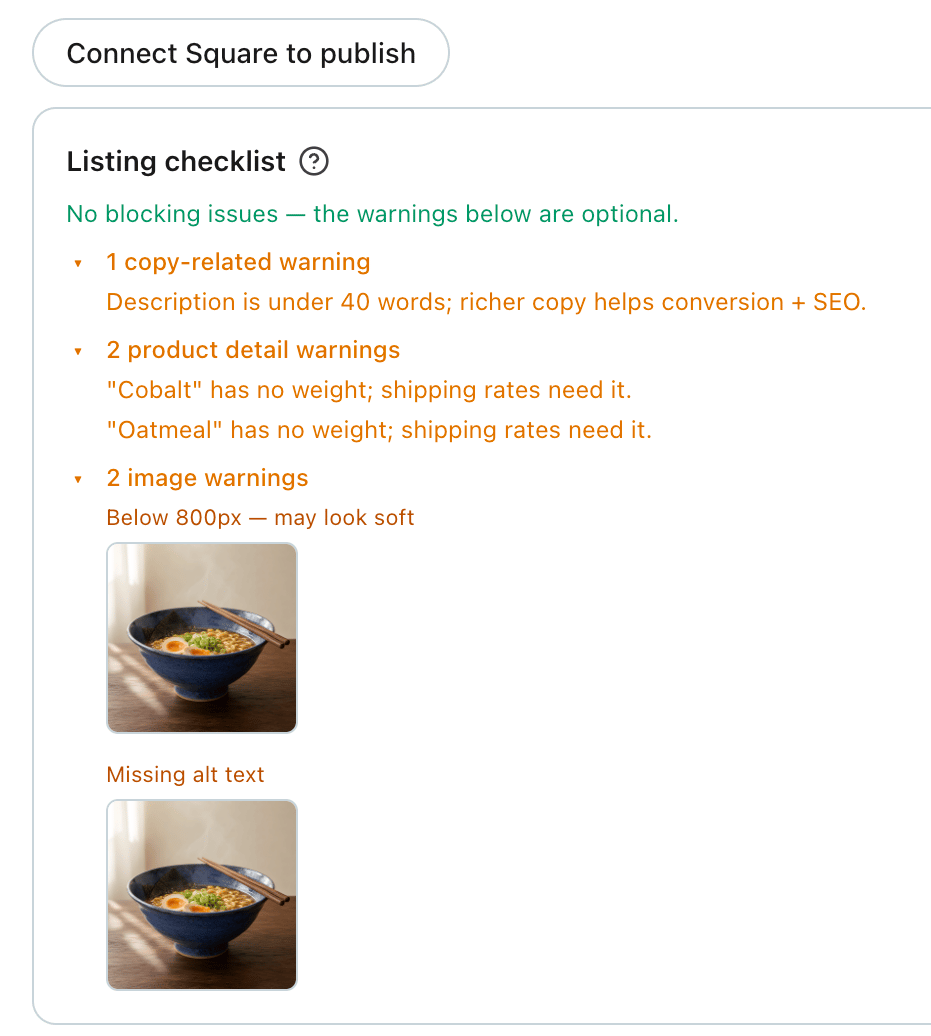
The checks, one by one
The most common warnings:
- Below 800px — may look soft. The photo is small and could look fuzzy at full size.
- Not square — set a focal point for a clean 1:1 crop. Square shows square thumbnails; setting a focal point tells us what to keep when it's cropped. (This warning disappears once a focal point is set.)
- Missing alt text. A short description that helps search and screen readers. (Alt text isn't required by Square, so you won't see this one on Square preflight — but it's good practice.)
- No weight set. Shipping rates need a weight, so add one if you'll ship the item.
- Thin description (under ~40 words). A little more detail helps both shoppers and search.
Fixing a warning
Click a warning's thumbnail to jump straight to the Images tab for that photo. From there you can replace a soft or low-res shot with a better one, set a focal point on a non-square image, or add alt text. For a weight or description warning, open the product's details and fill it in. The checklist re-checks itself as you go.
Related: Publishing a product to Square