Media is your shared image library — upload a photo once and reuse it anywhere: on products, listings, and more. Upload once, use everywhere.
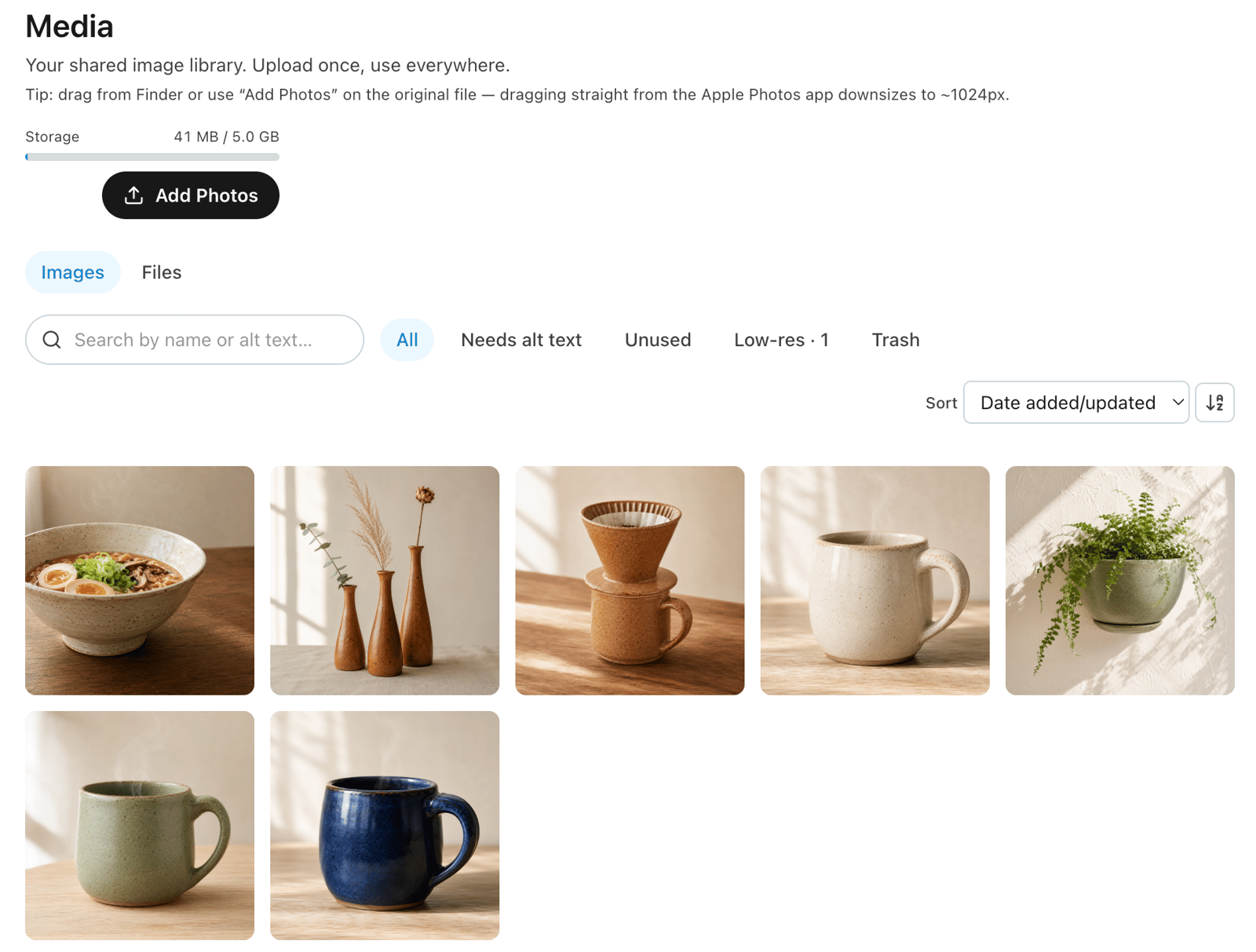
Drag in a photo
Two ways to add images:
- Drag image files straight onto the Media page — you'll see "Drop images to add them to your library."
- Or click Add Photos (top-right) and pick them. You can add several at once.
JPEG, PNG, WebP, and iPhone HEIC photos all work, up to 25 MB each. If an image is smaller than 1600px on its long edge, you'll get a gentle low-resolution heads-up — a suggestion, not a block.
Tip
Drag from Finder, or use Add Photos on the original file. Dragging straight out of the Apple Photos app shrinks the photo to about 1024px before it ever reaches us.
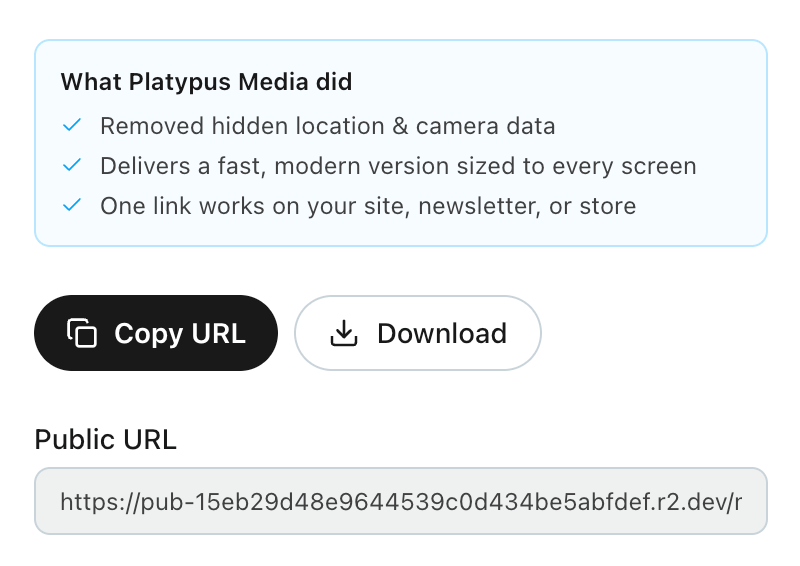
What happens to your image automatically
You don't configure any of this — every upload gets the professional treatment:
- Hidden location & camera data removed. GPS and other EXIF data are stripped, so a photo from your phone never reveals where it was taken.
- Turned the right way up, and iPhone HEIC photos are converted to a standard format.
- Trimmed for the web — oversized images are scaled down (never up).
- Delivered fast and modern, sized to every screen. The right size and format for each visitor's device are produced on the fly — your original stays intact.
- Duplicates caught. Upload the same image twice and it simply reuses the one already in your library.
By default we keep the optimized version and discard the bulky original. Want to archive full-resolution originals (handy for reprints)? Turn on Keep original hi-res files in Media → Settings.
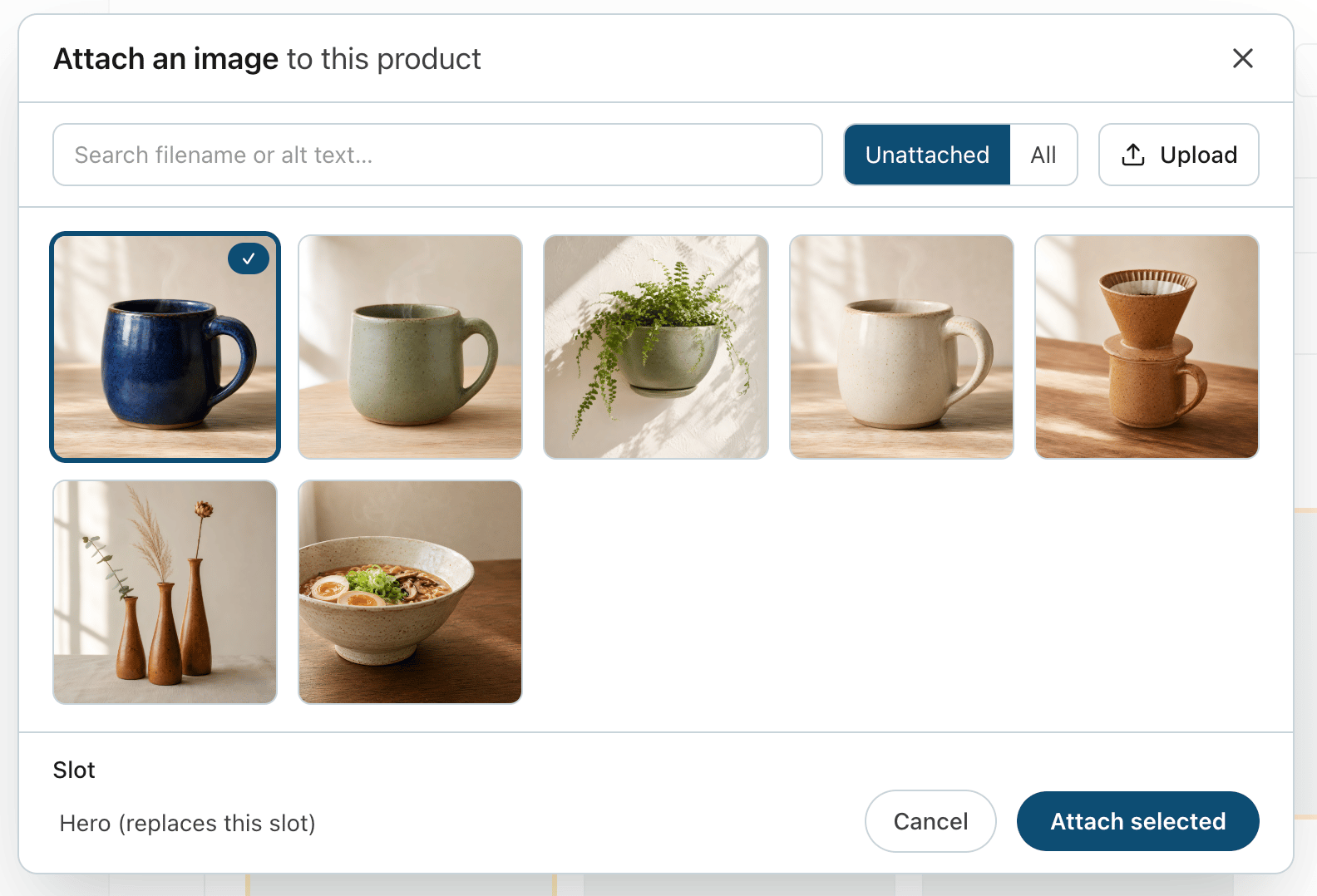
Using an image on a product
- Open a product and choose Attach an image to pull one from your library. Product photos have slots — Hero, Front, Back, Detail, Scale, In-use, and Packaging. The Hero is the lead photo shoppers see first, and it becomes Square's main image when you publish.
- Add alt text on the image's page ("Describe this image for screen readers…"). It travels everywhere the image is used and helps with search and accessibility.
- Got a better shot later? Use Replace image on the image's page. The link stays the same, so every product using it updates — and any Square listing re-publishes automatically.
Related: Getting started with Business Ops