Connecting Square lets you publish products from Business Ops straight to your Square store — and keep them in sync from here.
What connecting does
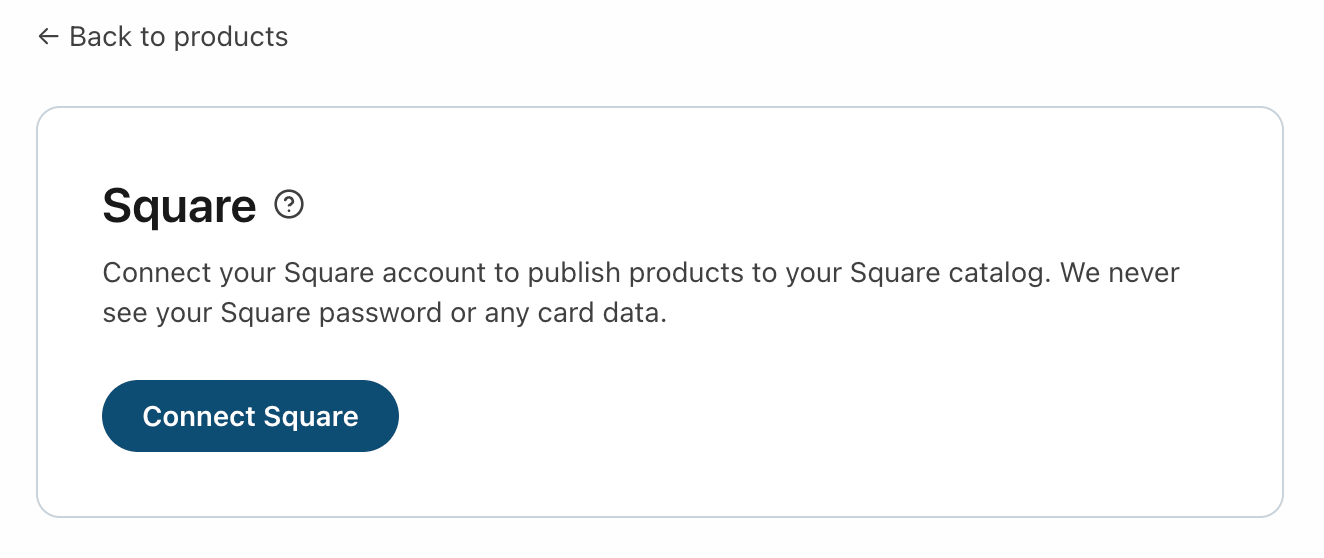
You sign in through Square itself (a secure OAuth connection), and grant Business Ops permission to manage your Square items. We never see your Square password or any card data. Once connected, a Publish to Square button appears on your products. (Inventory counts are read-only — we don't change your stock.)
Connect your store
- Go to Products → Square (or click the Connect Square card on your Products home).
- Click Connect Square. You'll land on Square's sign-in, where you approve the connection.
- Back in Business Ops, the page shows Connected along with your merchant — you're ready to publish.
If the connection fails
- "Square isn't configured on this server yet" — that's a setup issue on our side, not yours. Let us know at [email protected].
- Need to grant new permissions? Use Reconnect / update permissions — your published items and Square IDs are kept, so nothing needs re-publishing.
- Want to unlink? Disconnect Square removes Square's synced IDs and status from this workspace. Your products, prices, and images all stay put — only the Square link is removed.
Related: Publishing a product to Square